 3D Parallax
Choose Centered or Widgets
Open Settings → Layout. Centered gives your clock, greeting, search and shortcuts a balanced starting position. It suits a simple homepage where the background has room to breathe.
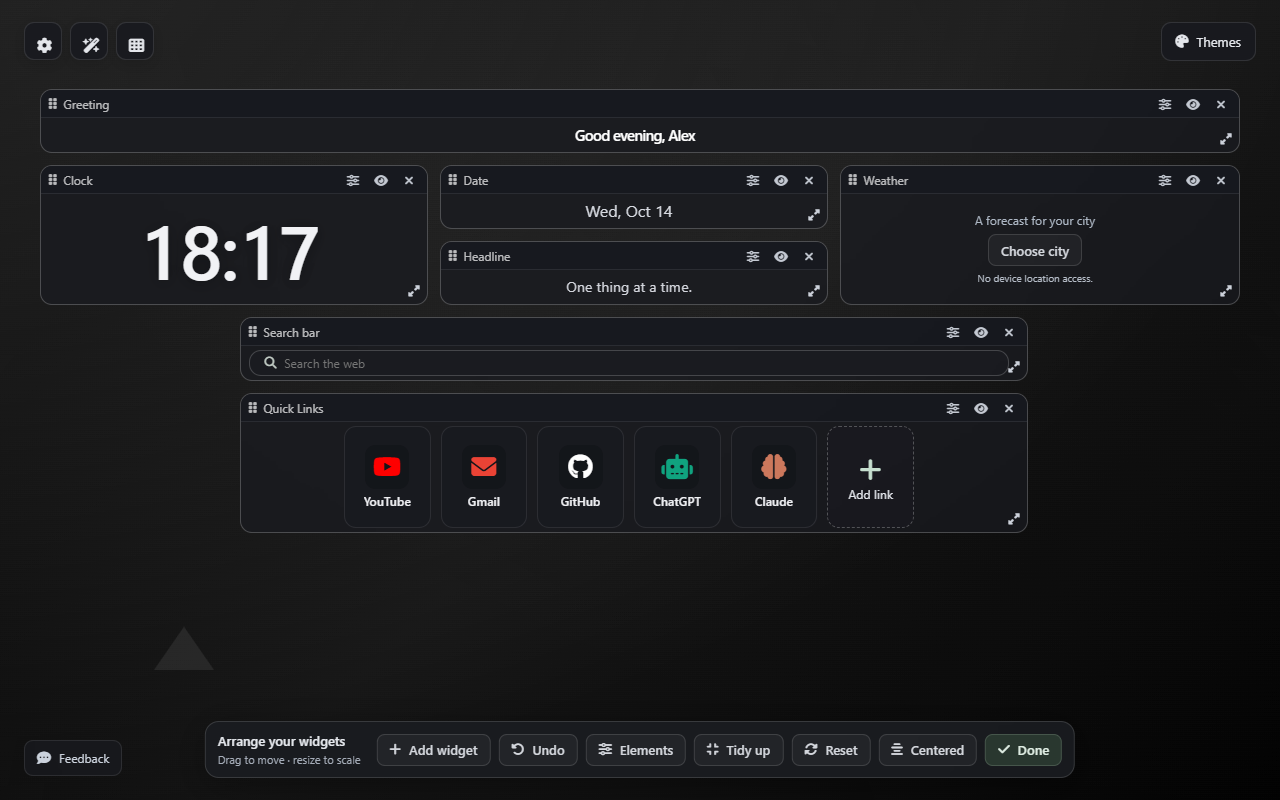
Choose Widgets when you want to arrange the elements yourself. You can move them around the page, resize them and decide which ones to show. A layout changes your homepage’s arrangement; your saved wallpaper collection is kept separately.
Move and resize the actual content
- Open the layout editor from your new tab or choose Arrange widgets in Layout settings.
- Drag a widget by its title to move it.
- Drag its lower corner to resize it. Text, icons and controls scale with the widget.
- Use the widget’s settings to fine-tune its position, size or available options.
- Choose Done when the layout feels right.
Tidy up helps organize a scattered layout. Undo lets you recover the previous arrangement after a change. You can also return to Centered from Layout settings.
Keep favorite websites close
Use Add link in Quick Links to add a website address and a name you recognize. A compact shortcut row is useful for the sites you open every day, such as email, work tools or reading lists.
You add these shortcuts yourself. They do not import or change your Chrome bookmarks, and the extension does not read your browsing history. Reorder your links when your routine changes, or remove ones you no longer need.
The toolbar popup shows a quick view of your saved links. In version 2.6, it also reflects your homepage’s current theme or wallpaper and provides shortcuts to the relevant settings.
Show the tools you actually use
Available elements include a clock, date, greeting, search, quick links, notes, tasks and countdown. Use the element controls to show or hide them, and add useful widgets from the layout editor.
Weather is optional: choose a city to enable it. The extension does not request your device location. You can also choose ambient sound in Background settings. Online search, forecasts and optional AI requests need an internet connection; local notes, tasks and saved wallpapers remain available offline.
AI chat and styling use a compatible provider key that you supply. The ordinary homepage works without one. Read how optional features work before connecting a provider.
Keep your homepage setup
Settings save on this device. Use Settings → Backup & help → Export when you want a backup. API keys are excluded by default; keep any backup containing keys private. Restoring a backup replaces the preferences included in it.
Reset clears the extension’s local setup, including notes, tasks, saved wallpapers and provider keys. A regular extension update does not require a reset. Keep your original wallpaper files and a backup of important preferences before removing the extension or clearing its browser data.
Need help arranging the page?
Visit Layout help for a short walkthrough, or use the support link in the extension. For backgrounds that complement your layout, see the wallpaper and theme guide.