 3D Parallax
Start with one of 18 built-in themes
Open Themes → Built-in themes in the extension. Choose a style such as Minimal Dark, Nature or Space. A theme changes the homepage’s colors and scene; you can then adjust visual effects and the layout to suit your screen.
A quieter background can help your clock, search and shortcuts stand out. If you prefer fewer effects, use the element controls to turn off Matrix rain, particles, background glow or 3D objects. These are personal choices, saved on your device.
Keep up to five personal wallpapers
In Themes → My wallpapers, choose Add wallpaper and select a photo or video from your device. Give your homepage a familiar view without replacing your saved shortcut list or layout.
The collection accepts JPG, PNG, WebP, GIF and AVIF images, plus MP4 and WebM videos. Photos must be smaller than 20 MB and no more than 50 megapixels; videos must be smaller than 80 MB. The extension checks a file before saving it.
Your saved collection holds up to five wallpapers on this device. Remove an item to make room when it is full. Switching to a built-in theme keeps the collection, so you can return to a saved wallpaper later.
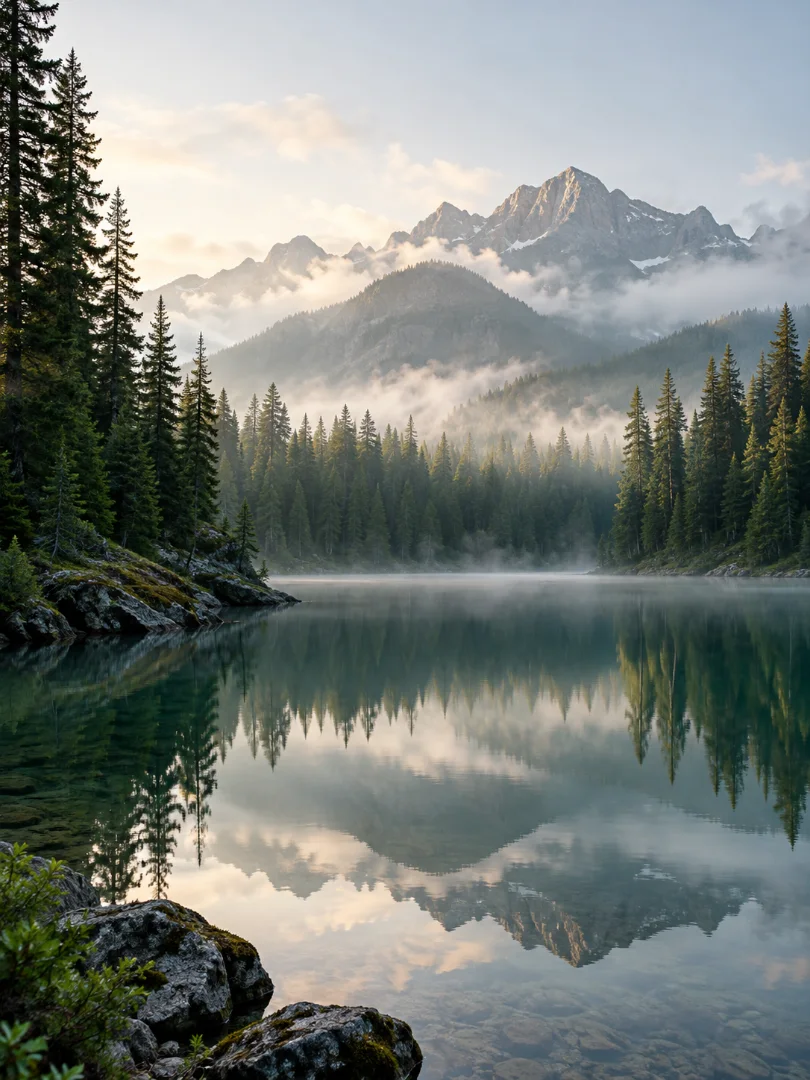
Discover the published wallpaper library
Open Themes → Library to browse wallpapers added by the developer. Search by name or use the available categories. The collection comes from the backend, so newly published artwork can appear without a new Chrome Web Store release.
Download saves a file to your device. Save & use imports a wallpaper into the extension’s five-item collection and applies it to your new tab. The imported file remains available offline. Discovering and downloading new wallpapers requires an internet connection.
The library can change over time. Its artwork and categories are managed separately from the sample scenery on this website.
Switch backgrounds without losing your setup
- Open Themes on your new tab.
- Select Built-in themes, My wallpapers or Library.
- Choose a theme, or use a wallpaper saved in your collection.
- Open Settings → Background if you want to adjust the wallpaper’s dimming, blur or other available controls.
If text is difficult to read over a busy photo, increase the background dimming or choose a quieter image. You can also move and resize widgets to place them where the background has more space.
Common wallpaper questions
Are my uploaded photos sent to the developer?
Personal wallpaper uploads are saved locally in this browser. The extension does not upload those files to the developer’s library. See the privacy policy for details about optional online features.
Can I use saved wallpapers without internet?
Yes. Files saved in the local collection work offline. Online search, weather, AI and browsing new library entries still need internet access.
Why is a library upload missing?
The public library shows published entries. A developer’s draft is not visible to users until it is published. Refresh the library after a new entry is published.
Does my backup include all five files?
A backup can include the active wallpaper. The other saved collection files remain on the device, so keep separate copies of original photos and videos you want to retain.
For more help, visit the wallpaper support guide.